Projects help you organize your work in Semrush. Think of each project as a workspace for a specific website or client, where you can access your tools and data in one place.
Projects make your work easier by keeping everything organized:
- Monitor key metrics and navigate easily: See important metrics from different toolkits right on your Home page
- Collaborate better: Share more context at once, making teamwork smoother
- Stay organized: Use tags and filters to quickly find what you need
How to access projects
Visit your Home page to see all your projects.

You can also switch between projects from most tool pages using the project dropdown at the top.
Each project displays a data view with blocks for the toolkits you're using. At a glance, you'll see metrics like AI Visibility, Site Health, Organic Traffic, and Backlinks.
If you haven't set up a tool yet, you'll see a button to help you get started.

How to create a project
- Click + Create Project on your Home page, or use the Project selector in most tools


- Name your project and, optionally, add a website

Edit or delete projects
You can change a project’s name at any time. However, once you've added a domain and set up a tool with it, that domain can't be changed.
To work with a different domain, create a new project.
Deleting a project also deletes its associated tool data, and deleted projects can't be restored. If you've set up SEO tools in a project, you can delete the SEO data separately and keep the rest of the project. Deleting SEO data frees up the Website Monitoring slot used by the project.
To edit or delete a project:
- On the Home page, click the three-dot menu in the top-right corner of a project card
- Click Settings

In the project dropdown, hover over the project name and click the gear icon next to it.

When you open the project settings, you’ll see options to edit the name, share the project, or delete it.
Organize and share projects
Organizing multiple projects
When you have several projects, you can:
- Search and filter: Use the search bar to find projects by name, or filter by the owner or tags you've added

- Pin: Pin your most important projects to keep them at the top. In the project list, click the three-dot menu in the top-right corner of a project card, then select Pin

- Browse: View projects 15 at a time
Sharing projects
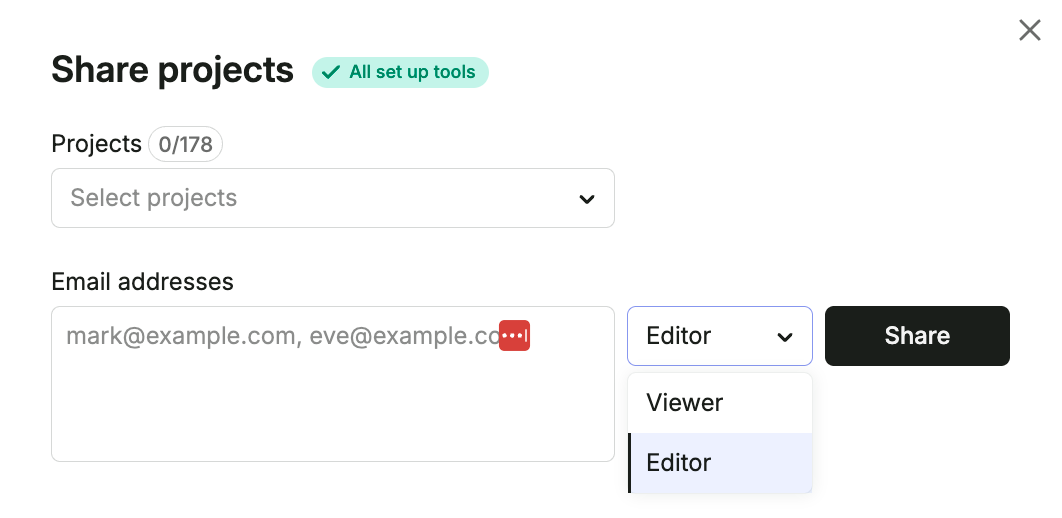
Sharing makes collaboration easy. Anyone with a paid plan can share a project.
|
Permission |
What it allows |
|
Viewer |
See the data, but can't make changes |
|
Editor |
Modify settings and set up tools, using the project owner's plan limits. Can also view and manage the project's sharing settings. |
Note: Free users can't be given Editor access. If a project is shared with a free user, they can only view data.
To share a project:
- Click Share on your Home page

- Set or update sharing permissions as needed:
- Change the permission type between Viewer and Editor
- Click the delete icon next to a user to remove their access
If projects have been shared with you, view them by going to your Home page and filtering by Shared with me.

For team accounts: Your account owner can contact our customer support team to set up automatic project sharing, giving everyone visibility into team projects via the Owned by my team filter.

This grants all corporate account users Editor permissions for every object, except locations — for those, users receive Viewer permissions instead.
This type of sharing can only be enabled upon request.
Leaving a shared project: If a project was shared with you and you no longer need access, you can leave it without affecting anyone else. In the project list, click the three-dot menu in the top-right corner of a project card, then select Leave.

Limits
You can create as many projects as you need. Limits apply only when you set up tools inside a project, and each toolkit has its own limit. The number included depends on your plan. For example:
- Website monitoring: The number of websites you can use at the same time with SEO monitoring tools, such as Position Tracking or Site Audit
- Locations: The number of locations you can track in the Local toolkit
Frequently asked questions
Creating a project by itself doesn't use a Website Monitoring slot. A slot is used when you set up Website Monitoring tools for the project's website, such as Site Audit, Position Tracking, Backlink Audit, On Page SEO Checker, or Organic Traffic Insights. Each project uses 1 slot, however many tools you set up.
To free up a Website Monitoring slot, delete the project's SEO data or delete the entire project. Deleting data can't be undone.
If you reach your Website Monitoring limit and want to set up SEO tools for another website, you can:
- Delete SEO data from a project, or delete the entire project, to free up a Website Monitoring slot
- Upgrade to a subscription with a higher Website Monitoring limit
- Purchase additional Website Monitoring capacity from the Subscription Info page
Yes, you can move data from one project to another for some tools. Reach out to our Support team, and they'll assist you with the transfer based on your specific needs.
Your subscription limits haven't changed. The Projects limit is now referred to as the Website monitoring limit, and you'll see this new name throughout Semrush. The number of websites you can monitor and how the limit works stay exactly the same.